- Solutions
- Products By Type
- Our Services
- Industries
- Who We Are
- Events
- Support
- Blog
- Contact Us
Microsoft Dynamics GP Dictionary & SET File
Posted on: Feb 7th, 2012
Filed under:
All you wanted to know and more about how the Microsoft Dynamics GP Dictionary and SET files!
- Standard reports are stored in the application dictionary (DYNAMICS.DIC). There is an application dictionary for each installed product (CM.DIC, etc.)
- Modified reports are stored in the reports dictionary (REPORTS.DIC). There is a reports dictionary for each installed product (CMRPT.DIC, etc.) and you might have customized reports in multiple dictionaries.
- Modified forms are stored in the forms dictionary (FORMS.DIC). There is a forms dictionary for each installed product (CMFRM.DIC, etc.) and you might have customized reports in multiple dictionaries.
- Modified reports and forms dictionaries should generally be stored in the shared folder like D:\GPCentral\Reports\ so they get backed up, so that all users look at the same modified reports, and to make management of the modified reports easier.
- However, there are times when different workstations need to point to different reports dictionaries.
- As a hypothetical example, if you have modified the Blank SOP Picking Ticket in different ways for different companies, the person printing the Picking Ticket for Fabrikam might need to point to a dictionary containing their version called REPORTS_FAB.DIC while the person printing the Picking Ticket for Paper Mill might need to point to a dictionary containing their dictionary called REPORTS_PM.DIC. This would be a complicated setup but would be possible.
- We often create ‘Dev’ or ‘Test’ reports dictionaries to use temporarily while modifying or testing customized reports. This allows us to gain exclusive access to the resources needed without having to get other users out of GP (and out of the REPORTS.DIC).
- The Dynamics.SET file on each workstation determines what product, form and report dictionaries the workstation uses
- When launching GP, the DYNAMICS.EXE file looks to the associated DYNAMICS.SET file (associated via the launch icon) to establish the products, paths and dictionaries to use for the current session.
- You can also manually launch Dynamics GP from Windows Explorer with a specific SET file by dragging the SET file over the DYNAMICS.EXE file located in the folder Program Files(x86)\Microsoft Dynamics\GP2010

- 98+% of the time there is only one SET file per workstation, but in special circumstances there might be multiple SET files
- As an example, you might create a REPORTS_TEST dictionary to test the newly modified SOP Blank Picking Ticket without interfering with the users in GP and without overwriting the current modified report before knowing that the new one would work. In that case, you would copy the DYNAMICS.SET file and rename the copy to something like DYNAMICS_TEST.SET. In that copy, you would change the path to the Dynamics reports to REPORTS_TEST. You would launch GP manually by dragging new SET file over the DYNAMICS.EXE
- In the hypothetical example above, we might create a DYNAMICS_FAB.SET and DYNAMICS_PM.SET file, edit the file to point to the correct dictionary and edit the desktop icons to point to the correct SET file
- The DYNAMICS.SET file can be accessed/edited outside of GP by going to the Program Files(x86)\Microsoft Dynamics\GP2010 folder (edit with Notepad).
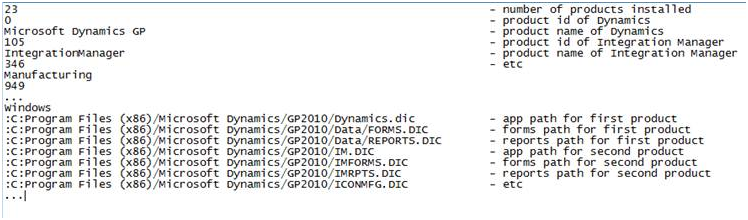
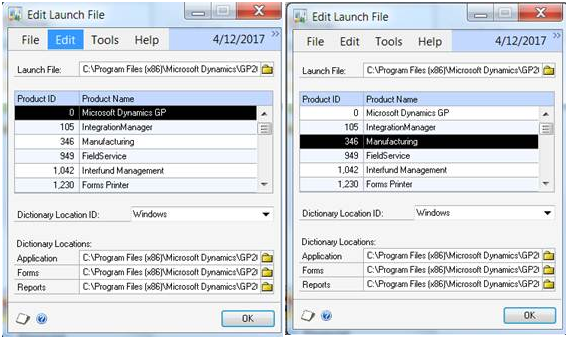
- The DYNAMICS.SET file can be viewed and paths can be edited from within GP by going to
- Tools --> Setup-->System-->Edit Launch File
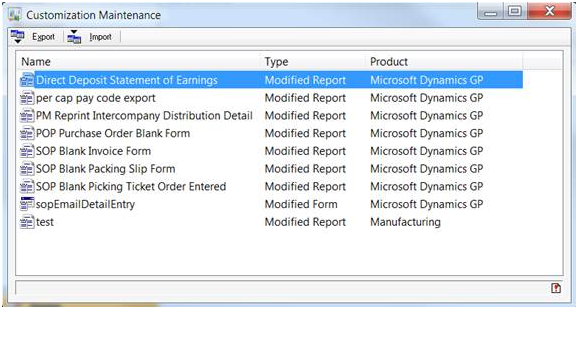
- You can see from within GP what modified forms and reports are in the dictionaries currently being utilized by going to Tools--> Customization --> Customization Maintenance.