
How to use the Task Recorder feature in Microsoft Dynamics AX 2012
The Microsoft Dynamics AX 2012 task recorder is a tool that will aide in the documentation process. This documentation can provide the step by step instruction for completion of the process as required. Once generated and verified, can be accessed online by users or provided as a hardcopy for work instructions. The task recorder is also a great tool to record a process issue or record the steps needed to duplicate an error or software bug.
To use the Task recorder go to File > Tools > Task Recorder
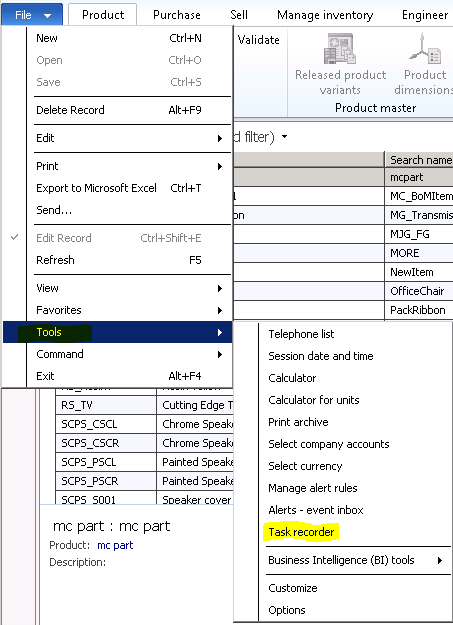
The Task recorder button will appear:
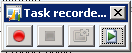
To record, click the RED button
From this point forward, any click / selection within the application will be recorded. This includes screen shots and movement through modules.
When completed with the process > Click the BLUE button:
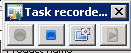
A prompt will appear asking if you wish to ‘Save this task?’
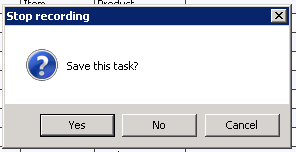
If you are done recording, click on Yes and then as desired enter additional task notes.
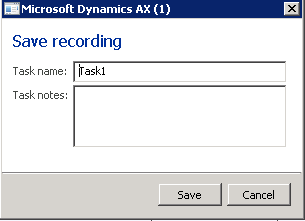
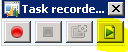
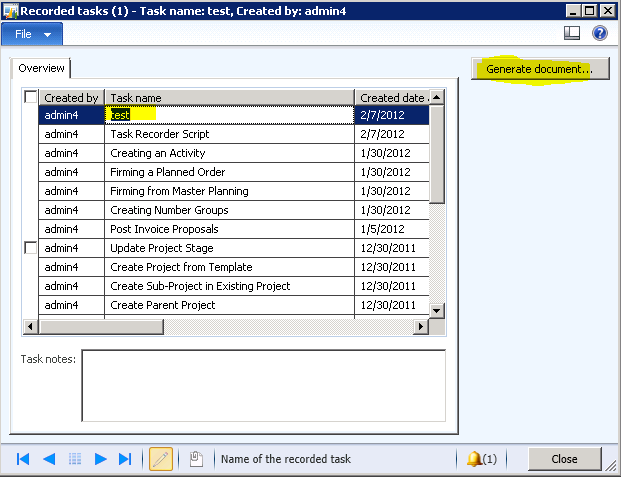
Once the task is saved, the Task recorder buttons will re-appear. To generate the Microsoft Word document of the recording, click the ARROW button.
The recorded tasks form will open.
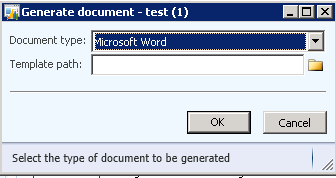
The Generate document prompt will appear. Normally, the task recordings are generated in Microsoft Word (default).
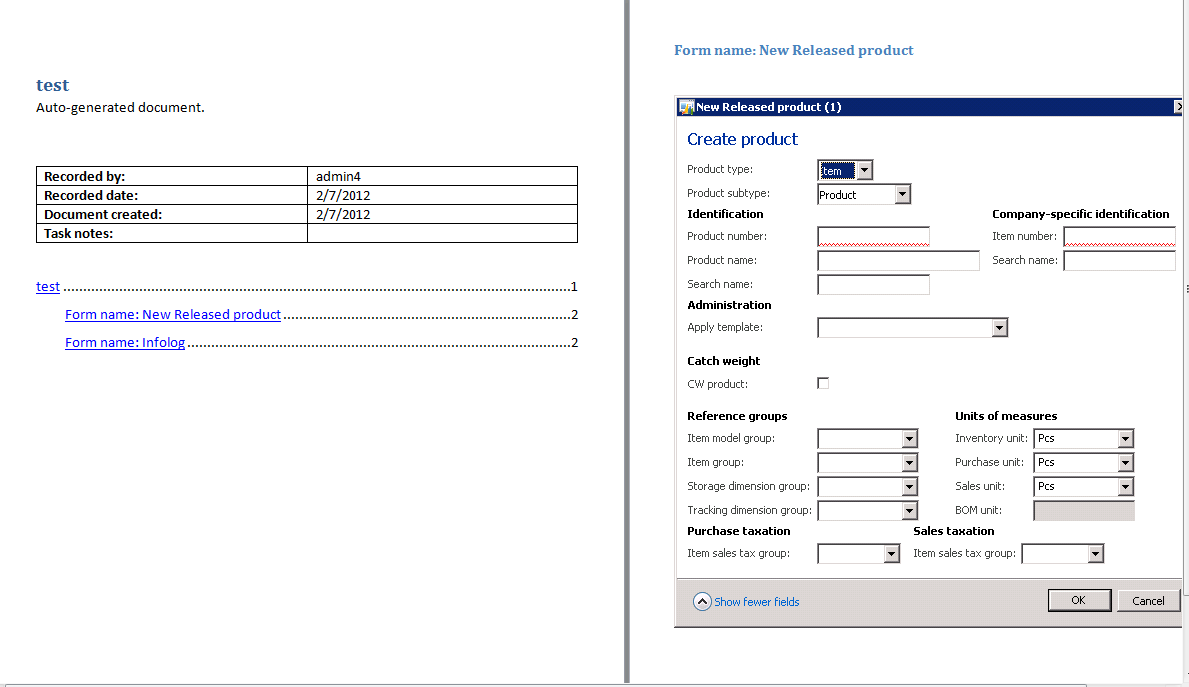
The following is an example of a Microsoft Word document created.
If you have any questions or would like to learn more about Microsoft Dynamics AX, please contact one of our representavies through our contact form.
